 back
backinstalling omarchy on the steam deck
NOTE: most details shared aren’t meant to be a tutorial but recap of my experience to install omarchy on my steam deck.
resources used
How to Dual Boot Arch Linux and Windows 11
for my use case, i only needed to know how to partition the drives so feel free to skip to 4:50 on the video for the indepth tutorial on how to partition the drive space for arch linux.
Installing Arch Linux with OMARCHY
once the drives were partitioned, it was time to use the
archinstallscript to install arch linux in a quick easy manner.
first off
with the switch powered off, i went into the boot menu & selected the bootable media with the arch linux iso on it. from here i would boot into a terminal and enable the wifi. how?
from the terminal, type iwctl which takes you into the iwd terminal where you can configure wifi.
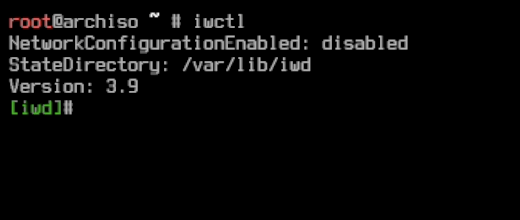
scanning for SSIDs (wifi networks)
station wlan0 scan
should only take a second, then use the following command to connect to your
station wlan0 connect <your_SSID>
once wifi is connected you can use exit in the iwctl terminal to go back to the root@archiso terminal.
partitioning drives
NOTE: before doing ANYTHING, youll need to partition your drive for installing arch on to. using
cfdisk
first you need to know where in your ssd you’ll want to install arch on. for me i already had about 500GB free on my drive to install on so I already knew where to mount everything onto. (dev/nvme01p15)
i needed to partition my drives. 488GB total. 1GB EFI file system & 487GB GB as a linux file system.
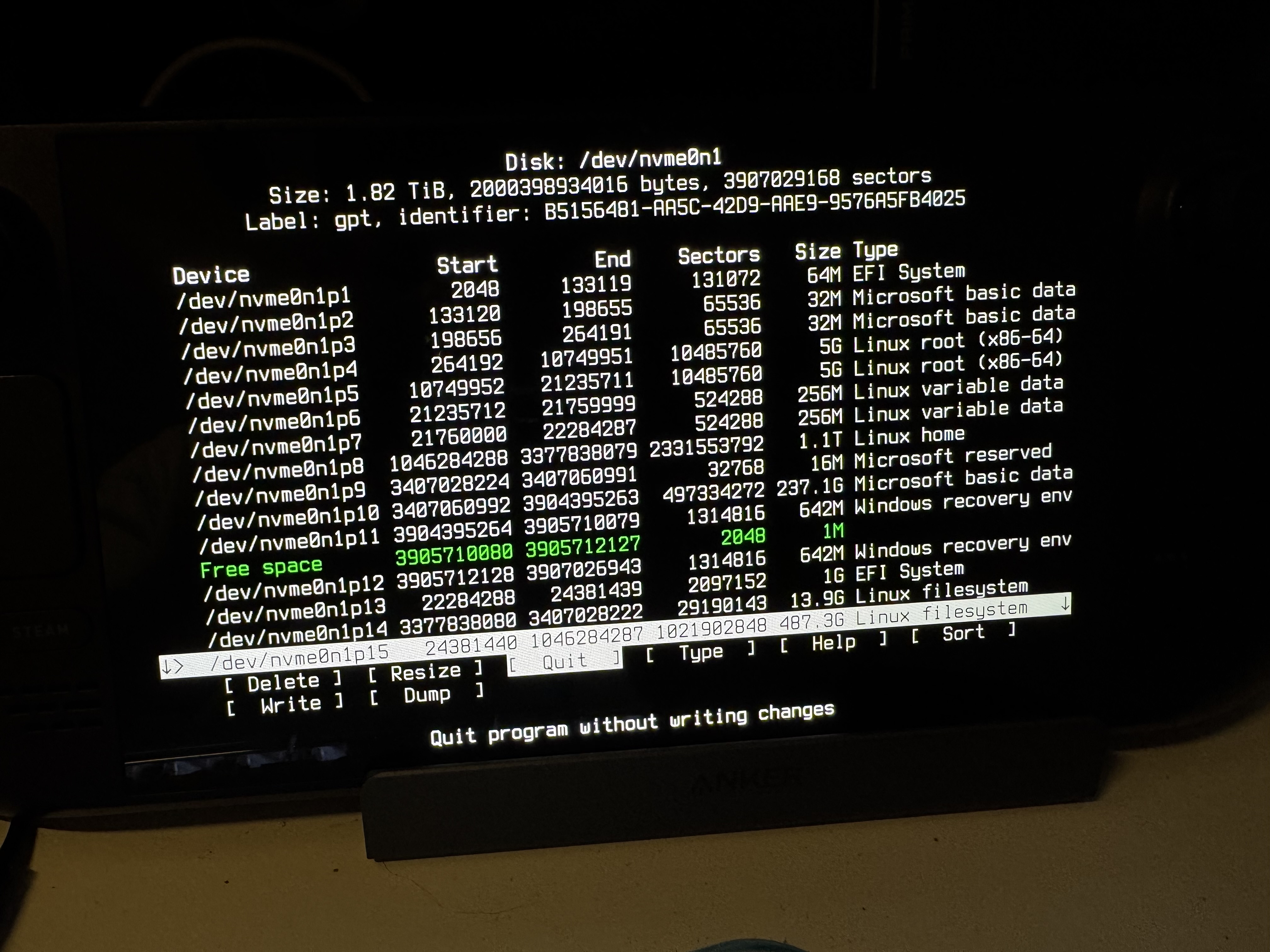
as seen above, i have dev/nvme01p13 as my boot drive & dev/nvme01p15 as my file system where arch will be installed.
for partitioning drives, follow this video was a huge help when using cfdisk util to create partitions for my install.
navigating the archinstaller menu
after connecting to wifi & partitioning drives, i ran archinstall to go into the archinstall script for easy installation.
NOTE: because we already partitioned our drives, when we are in the archinstaller wizard all we needed to do is go to
Disk Configuration -> Pre-mounted configuration -> point to your /mntdrive where the partitions are mounted.
for me it went as follows:
nvme01np13 -> /mnt/boot
nvme01np15 -> /mnt
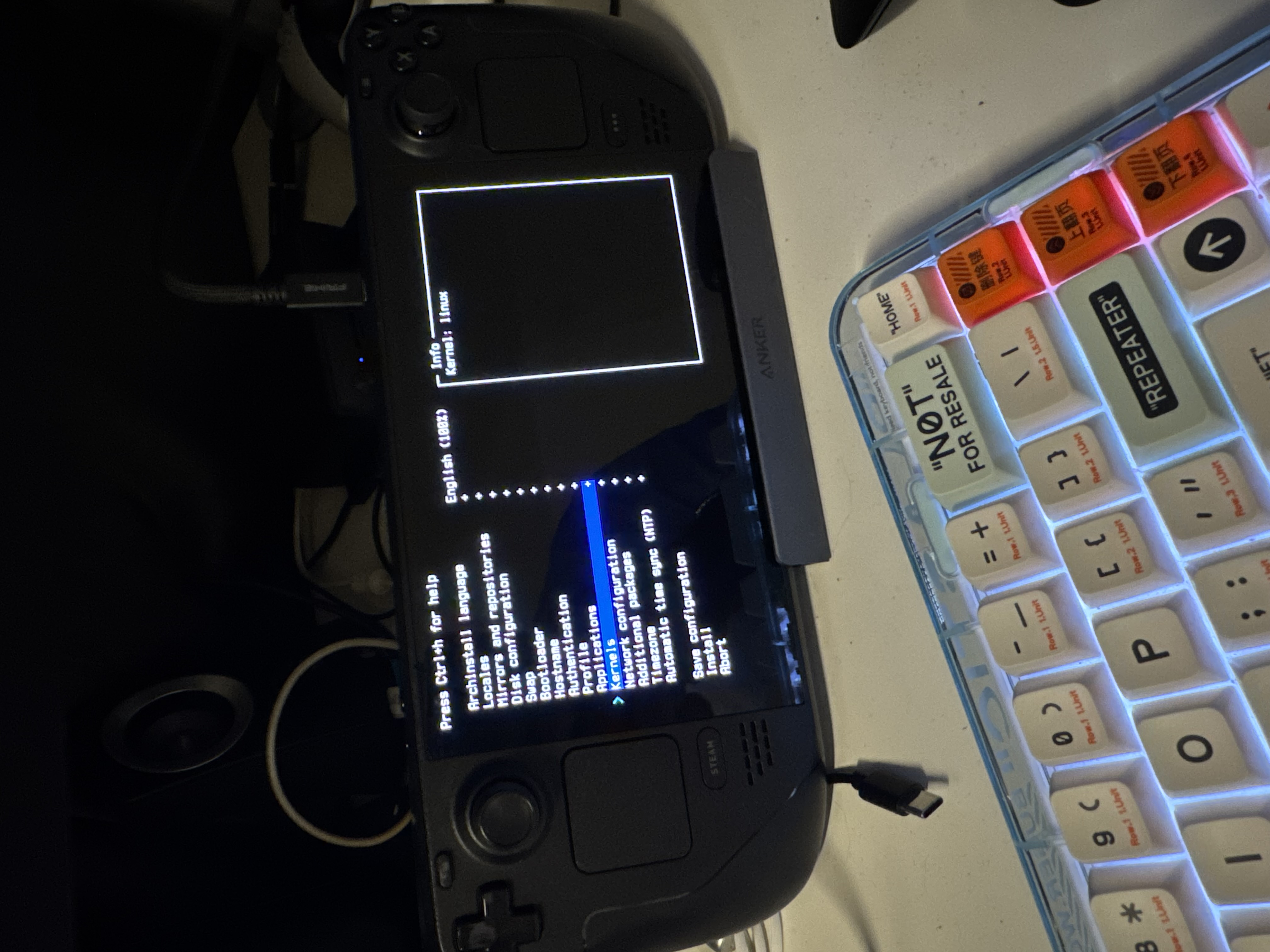 everything here is stright forward however if extra help is needed follow this video if you struggled like me, youll need this video for finding the best settings.
NOTE: in the
Additional packagesmenu of the archinstall wizard, youll needwgetto pull down the omarchy installer. just go into the Additional packages menu and type/andwgetto search for thewgetpackage.
installing omarchy
once all of this stuff was done, i was able to return to the root@archiso terminal to use wget to pull down the installer.
wget -qO- https://omarchy.org/install | bash
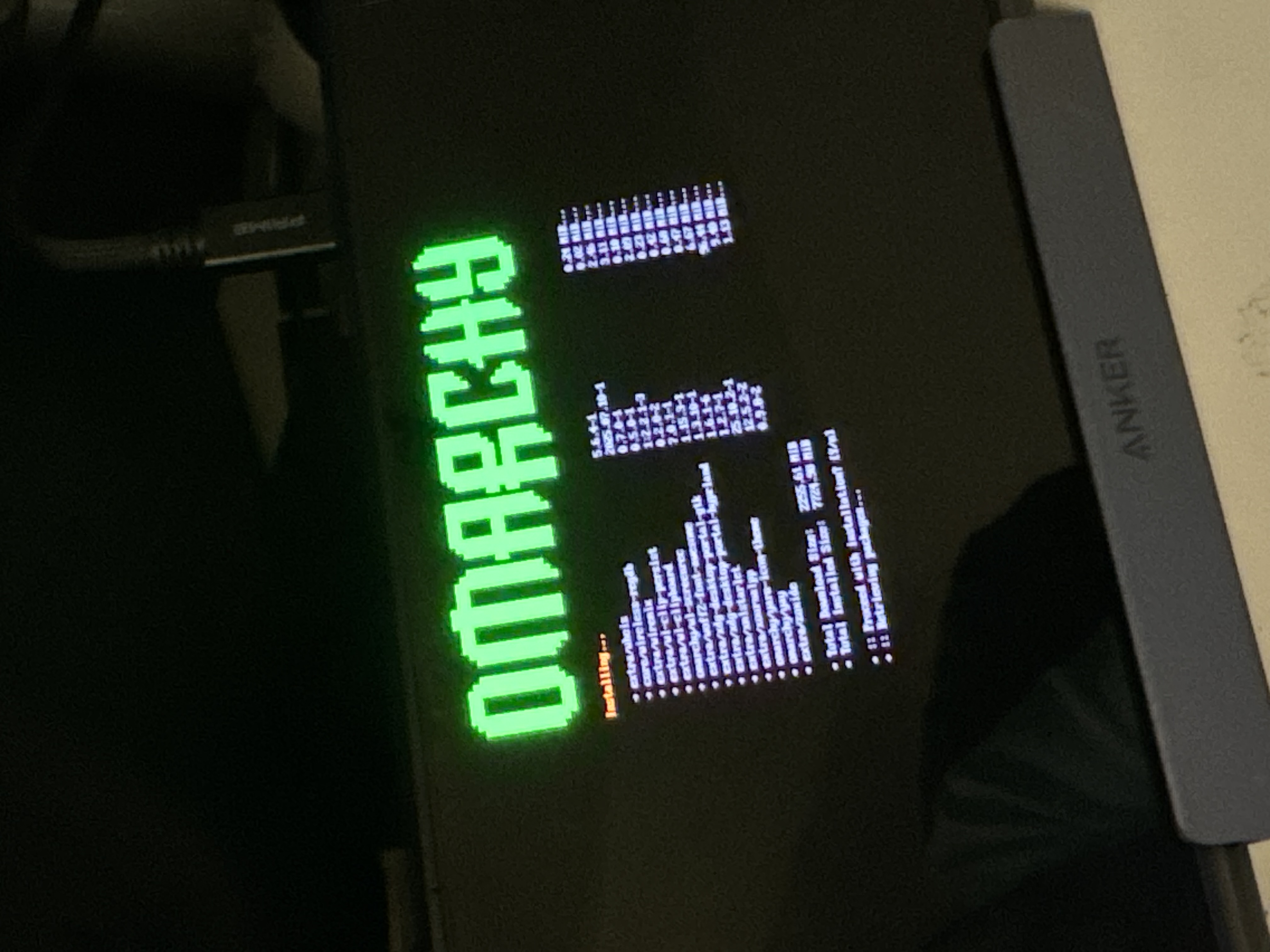
congrats, omarchy will begin install.